Android Device Enrollment Guide
This guide will walk you through the process of enrolling an Android device into your organization's MDM system using Android Management APIs.
Prerequisites
Before you begin, ensure you have:
- An Android device running Android 6.0 (API level 23) or higher
- Access to the MDM enrollment portal
- An active internet connection on your device
- Administrator credentials for the enrollment portal
Enrollment Steps
Step 1: Access Enrollment Portal
- Log into the onboarding portal using your administrator credentials
- Navigate to the device enrollment section
- Click on "Enroll Android Device" button
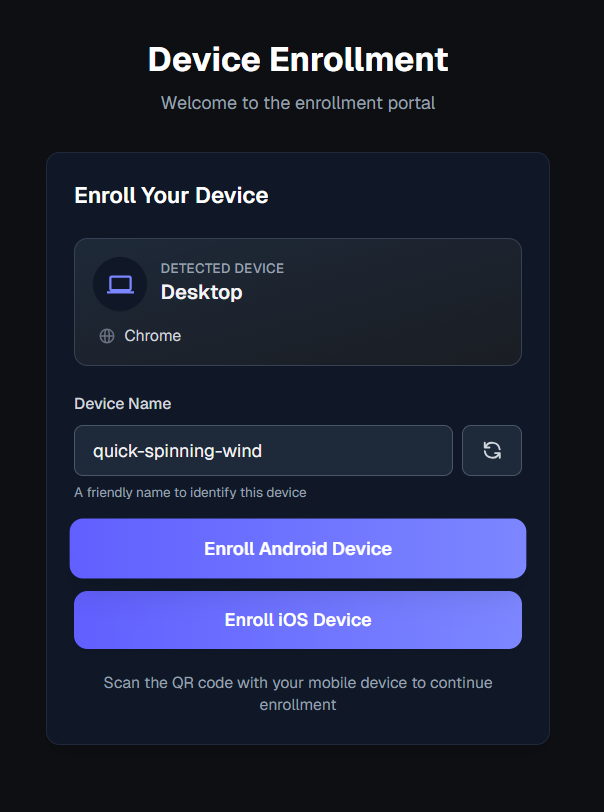
The enrollment portal will display options for enrolling your device. You'll see a card showing "Enroll Your Device" with detected device information.
Step 2: Get Enrollment Link or QR Code
You have two options to proceed with enrollment:
Option A: Copy Enrollment Link
- Click the "Copy Enrollment Link" button
- The enrollment link will be copied to your clipboard
- Open the link on your Android device
Option B: Scan QR Code
- Use your Android device's camera to scan the QR code displayed on the enrollment portal
- The device will automatically detect the enrollment information
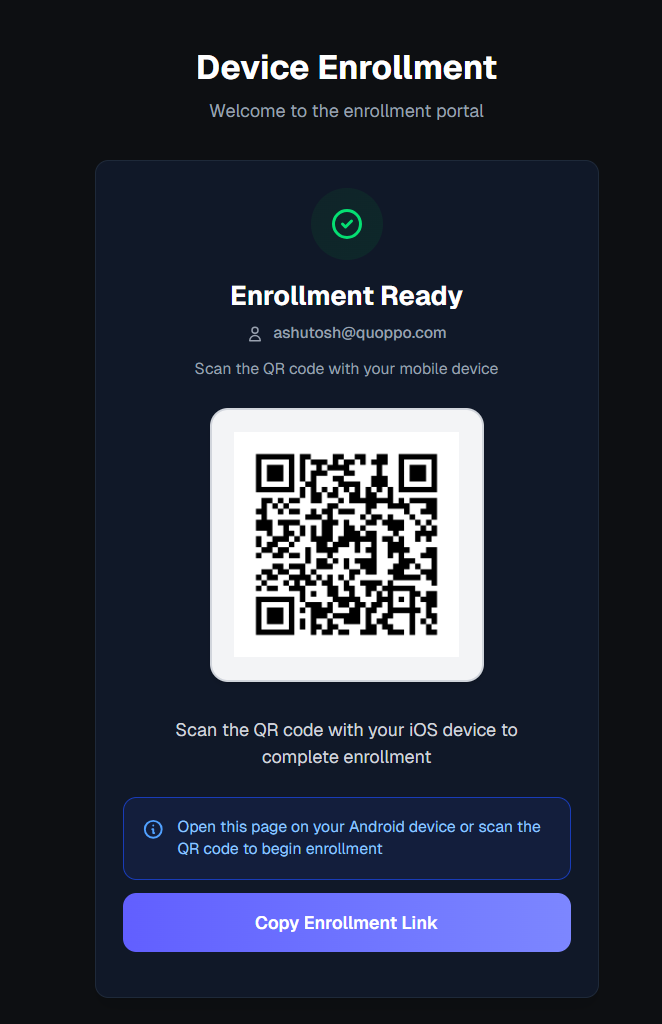
The QR code method is faster and more convenient. Simply point your device's camera at the QR code on the screen.
Step 3: Review Enrollment Details
After scanning the QR code or opening the enrollment link:
- Your Android device will automatically detect the enrollment information
- A screen will appear showing enrollment details, including:
- Organization name
- Work profile information
- Privacy policy details
- Review the enrollment information carefully
- Tap "Enroll" or "Continue" to proceed
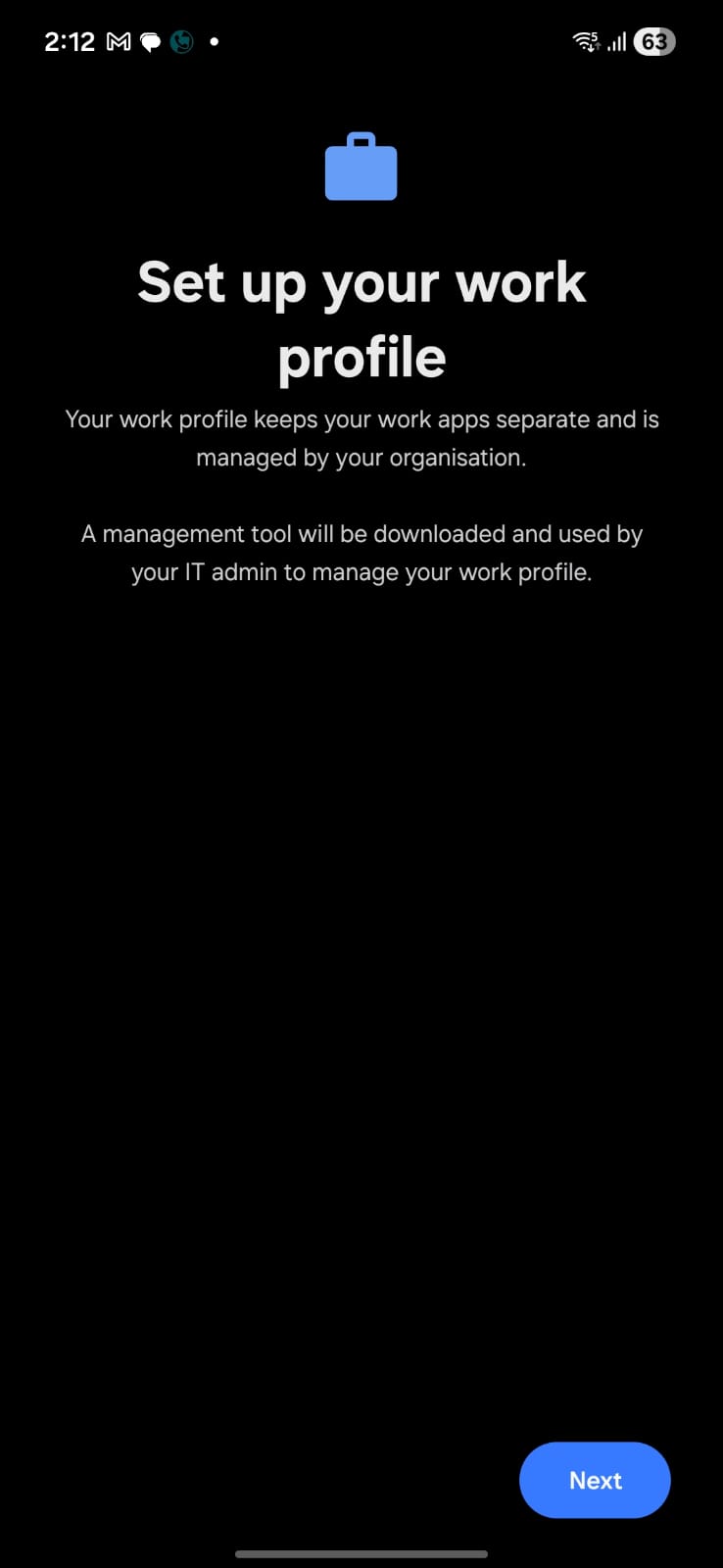
You may see a screen indicating "Enrollment Ready" with your email address and instructions to scan the QR code or open the page on your Android device.
Step 4: Complete Device Setup
- Follow the on-screen prompts on your Android device
- You may be asked to:
- Accept terms and conditions
- Set up a work profile (if using Android Enterprise)
- Grant necessary permissions
- The device will automatically:
- Download enterprise policies
- Install required applications
- Configure security settings
- Wait for the setup process to complete
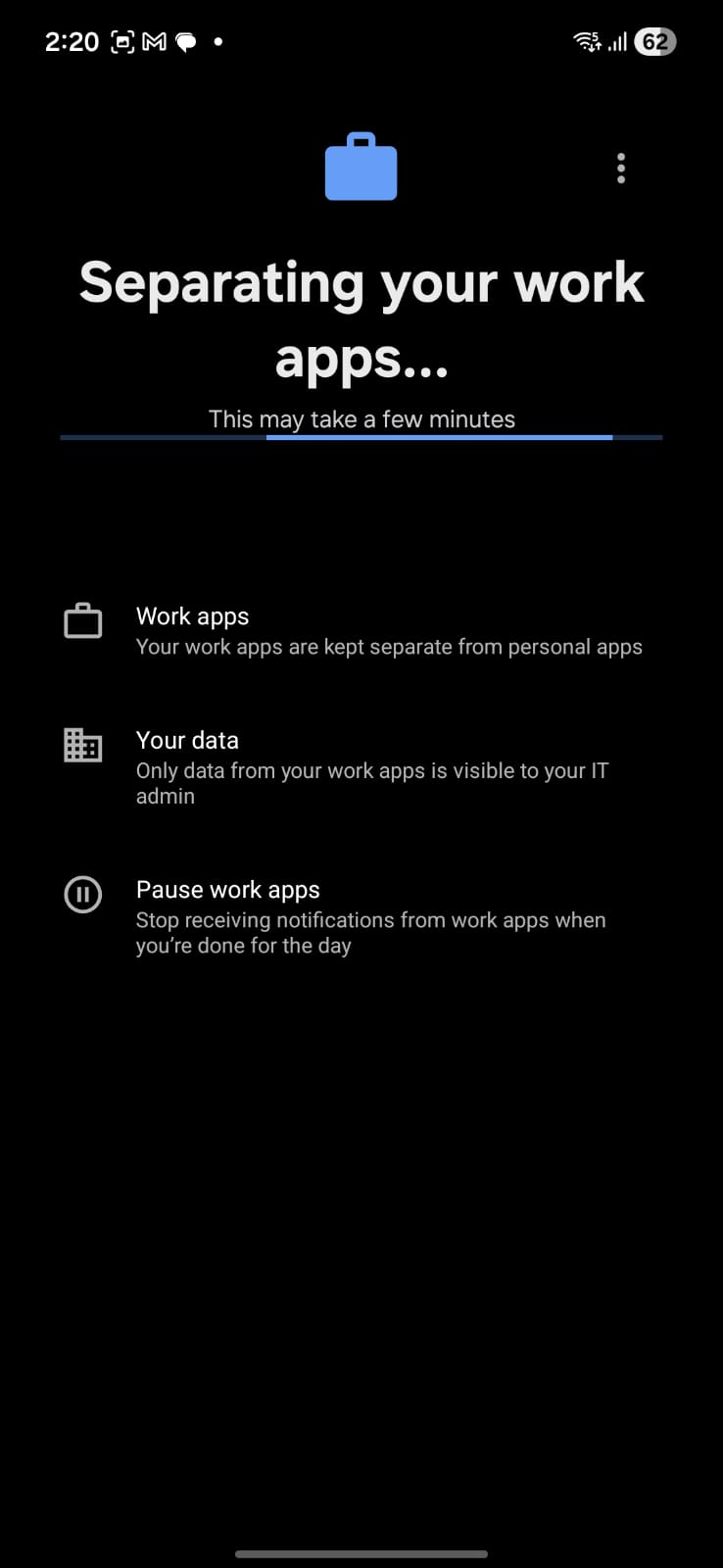
During this step, you may see screens explaining:
- Work apps: Your work apps are kept separate from personal apps
- Your data: Only data from your work apps is visible to your IT admin
- Pause work apps: Stop receiving notifications from work apps when you're done for the day
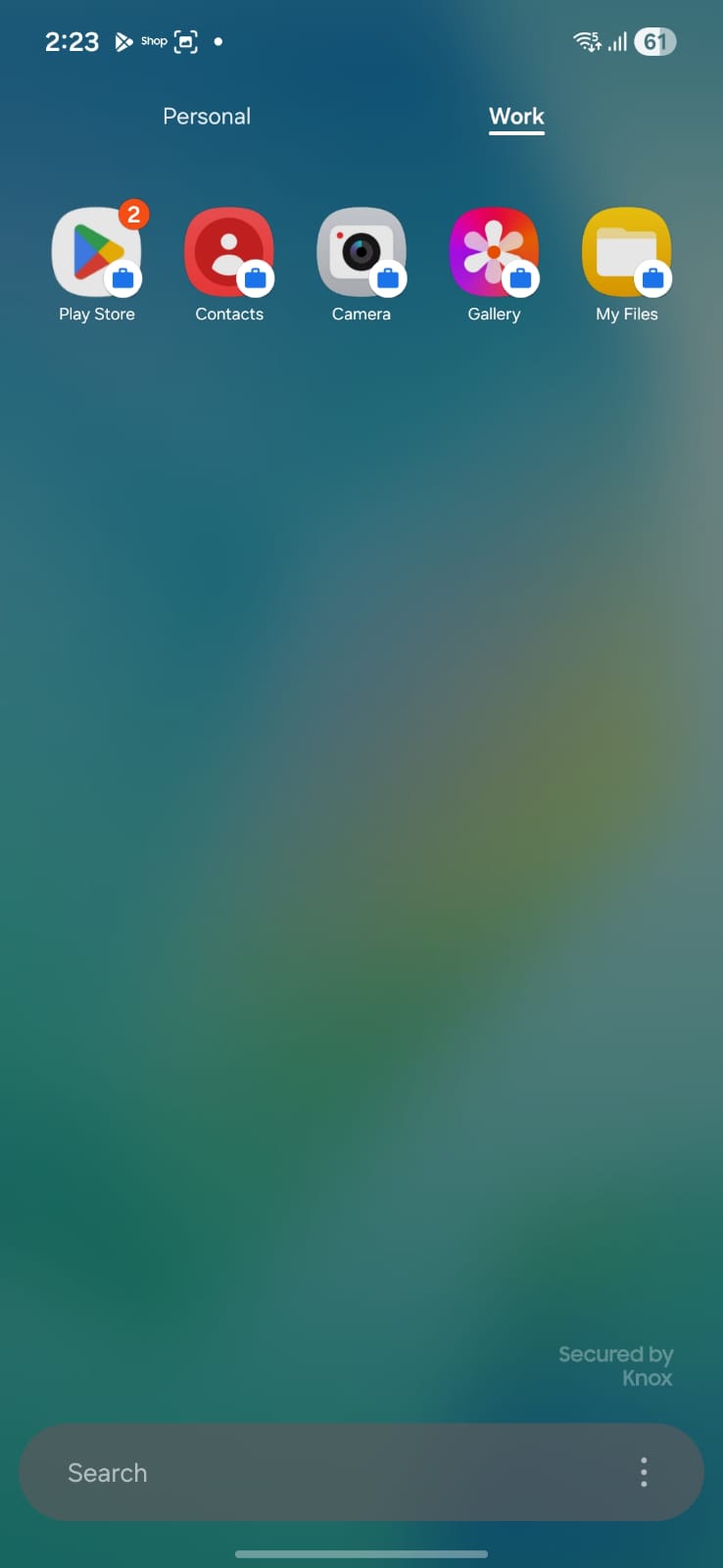
Once setup is complete, you'll see your work profile with work apps displayed separately from your personal apps.
Verification
After enrollment is complete:
- Check that a work profile has been created on your device
- Verify that work apps are installed and accessible
- Confirm that you can see the work profile indicator (briefcase icon) on work apps
- Test that you can access work resources through the work profile
Troubleshooting
QR Code Not Scanning
- Ensure your device's camera has permission to access the camera
- Make sure there's adequate lighting
- Try copying the enrollment link instead
Enrollment Link Not Working
- Verify you have an active internet connection
- Check that the link hasn't expired (enrollment links are time-limited)
- Try generating a new enrollment link from the portal
Setup Process Stuck
- Ensure your device has sufficient battery (at least 20%)
- Check your internet connection is stable
- Restart your device and try the enrollment process again
- Contact your IT administrator if the issue persists
Work Profile Not Appearing
- Verify your device supports Android Enterprise work profiles
- Check that your device meets the minimum Android version requirement (6.0+)
- Some device manufacturers may have additional requirements
Additional Resources
- Android Management API Documentation
- Android Enterprise Overview
- Contact your IT administrator for organization-specific policies and requirements